
Because a rose with a calligraphy name looks pretty sweet

This week’s adventure has us exploring the land of dreamy place cards. Lately, I’ve been seeing some really creative uses of temporary tattoos on my feed, including ones where people have been transferring pictures or brand logos onto flowers (shout out to @melsplanningparty and @handsometalker) and that got me thinking—if they’re able to do this with an image, why wouldn’t we be able to do it with calligraphy?
And after some beta testing to see if it actually worked, the result was beyond my expectations, and I ended up with a dozen bespoke roses that would be perfect for a wedding, elegant dinner, gala or literally anything in between.
The best part? Totally doable with a couple of tools and materials. So for those of you following at home, here are the steps I followed to create a set of beautiful roses each with their very own tattooed name so that you, too, can surprise your very special someone with a rose of their own.
Step 1: Gather your Materials
Calligraphy Materials
Pen holder
Nib
Ink (I used Ferris Wheel Press in Festival Grove)
White Paper (I used watercolor paper)
Eraser (to erase guidelines, if using)
Temporary Tattoo Materials
Scanner & Computer
Felt Edge Squeegees (optional, to remove air bubbles)
Brayer Rubber Roller (optional, to remove air bubbles)
Cricut Adhesive Cutting Mat (if using Cricut, not necessary. More on that later)
Scissors or paper cutter
Cotton balls or cotton pads
Water
White roses
Step 2: Write the names
*Note—before you start your calligraphy, make sure you measure the canvas of your roses to make sure that the names you’ll be writing will fit nicely within a single petal. For my names, I used a 4mm x-height and opted for Engrosser’s Script because I wanted an elegant look, though I bet these would work well and look nice with another script.
First, I created a set of pencil guidelines on a piece of watercolor paper. The Masgrimes lining triangle always makes this a breeze, in case you are an avid calligrapher looking to streamline your guidelining (not sponsored!).
Then, I wrote down several names onto the paper with my ink.
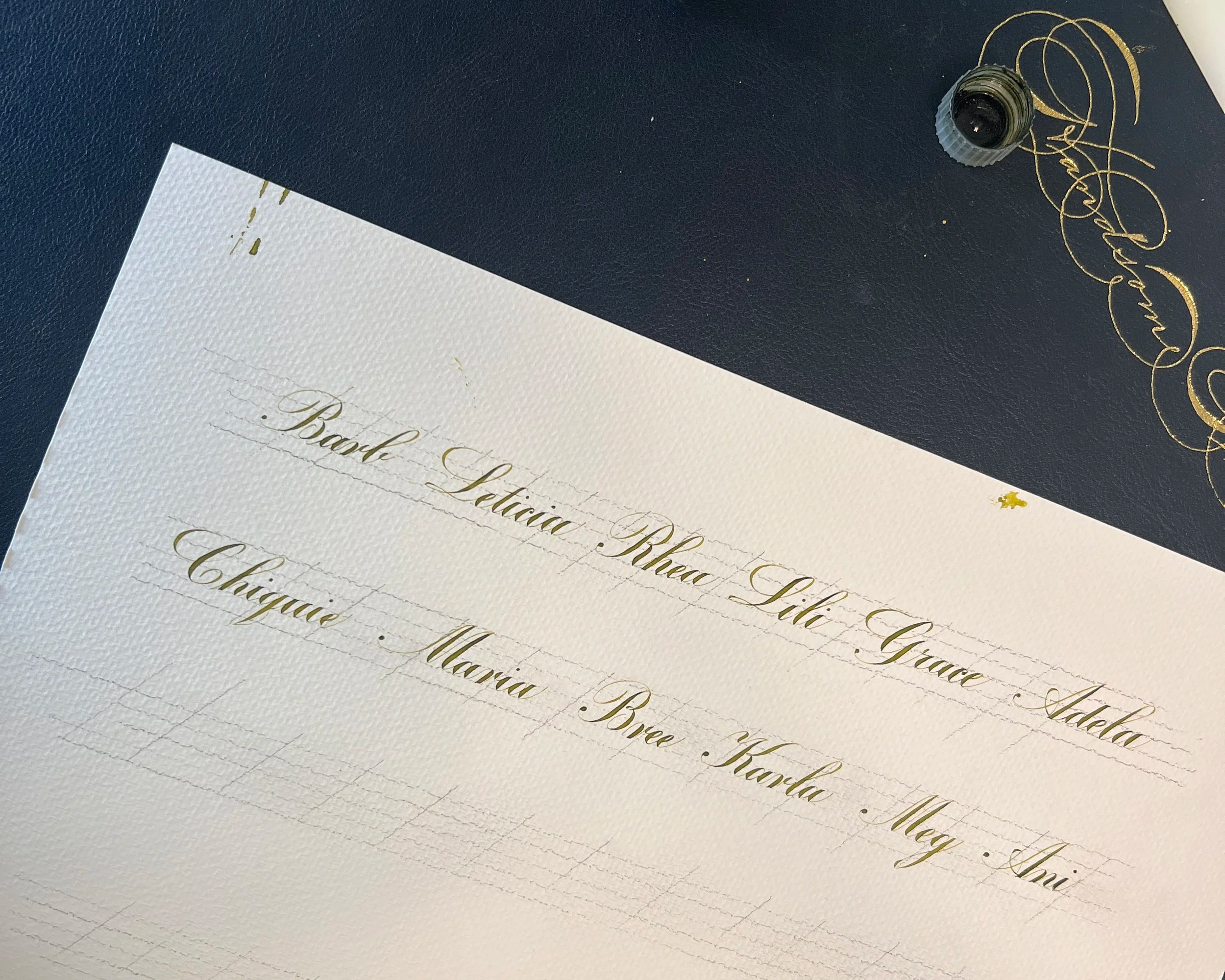
Once your names are dry, use your favorite eraser to erase the guidelines so that all you’re left with is the names on a white sheet of paper.
Step 3: Scan
Once you have your names on your sheet of paper, use a scanner to bring them into the digital space. We need to do this so that we can “flip” the names as the tattoos need to be printed in reverse to be the right side when they’re applied onto the roses.
For this, I scanned the calligraphy onto my computer at 300 dpi and then used Photoshop to clean out any inkperfections (pun, intended) as I had a couple of ink spills on my paper (to say the least).
Once I removed the blemishes from my scan and exported it into a high-res PNG, I was ready to print.
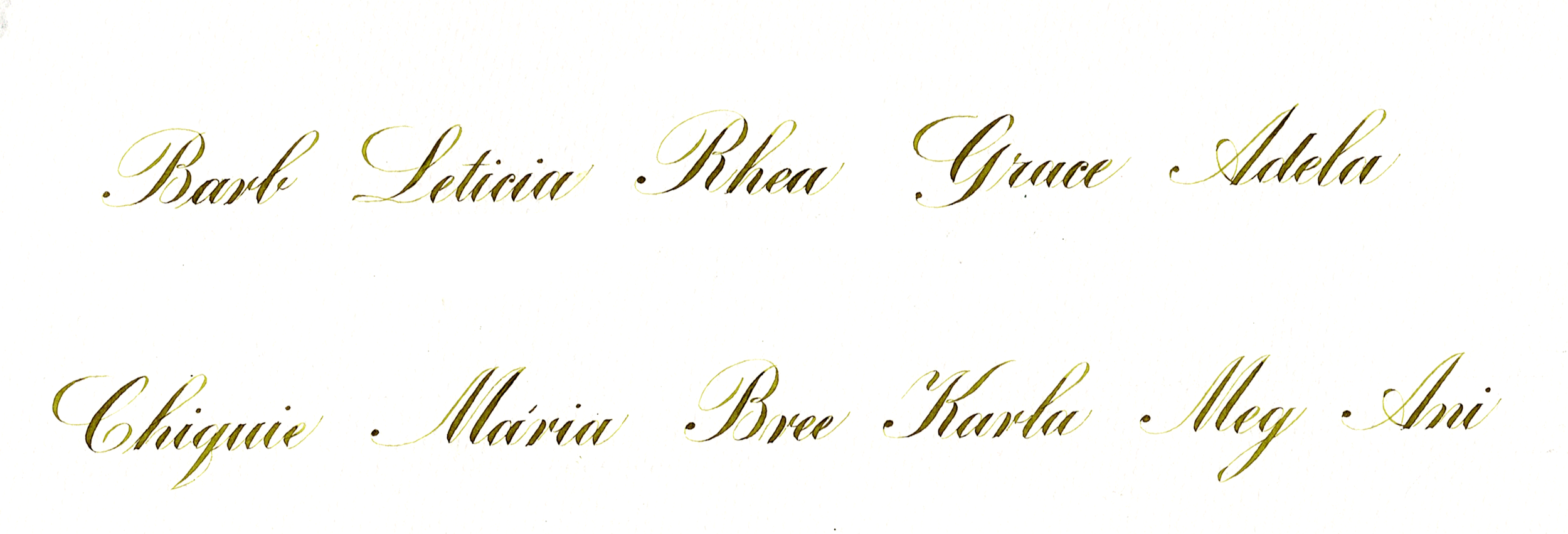
Step 4: Mirror and Print on the Correct Side of the Tattoo Paper
The tattoos need to be printed in reverse so they read correctly once transferred. Here’s how to mirror the design, with or without a Cricut.
For this step, you’ll need an inkjet printer and your inkjet printing temporary tattoo sheets if you’re doing this at home. Since I’m an avid sticker maker, I opted to use my Cricut for this step, though it’s not necessary.
If you’re Not Using a CricuT
If you don’t have a Cricut at home, no problem, the only additional step you’ll have to do in Photoshop (or your preferred image editing software) will be to export your calligraphy names mirrored with these steps:
Open Photoshop, go to Edit > Transform > Flip Horizontal
If I had followed this process, my image would look like this:
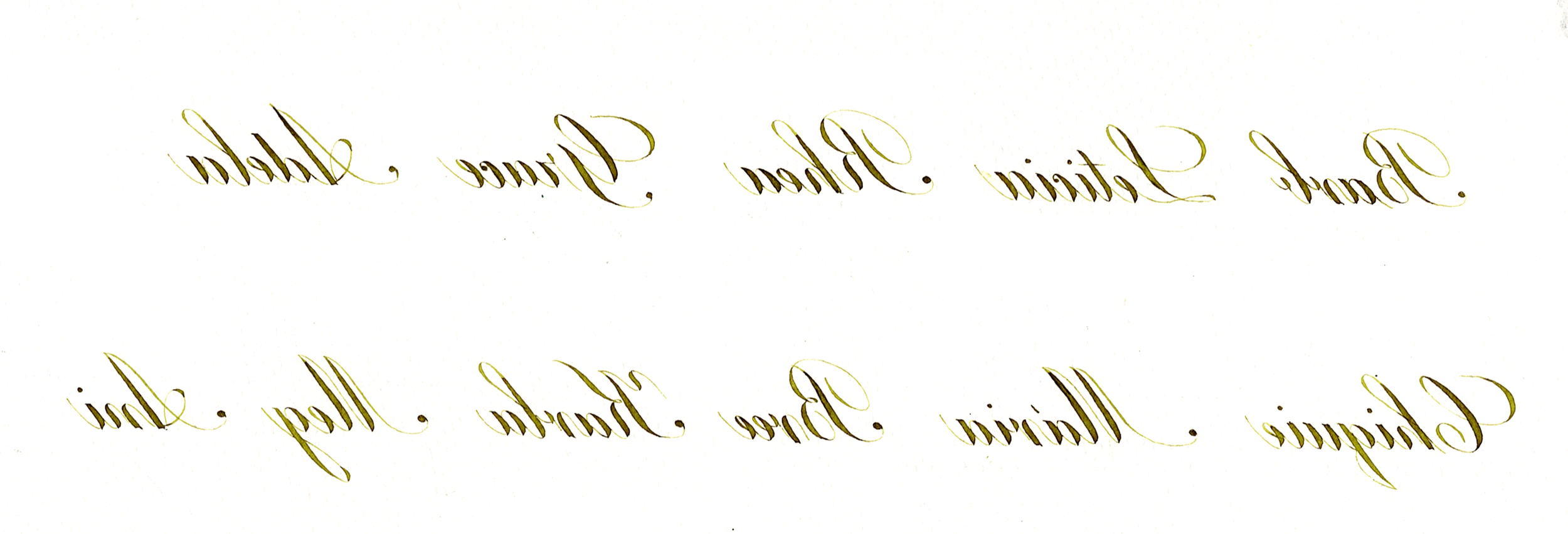
Note that you can do this without Photoshop as well by using Preview (if using a Mac) and selecting:
Open Preview, Select Tools > Flip Horizontal
If Using A Cricut
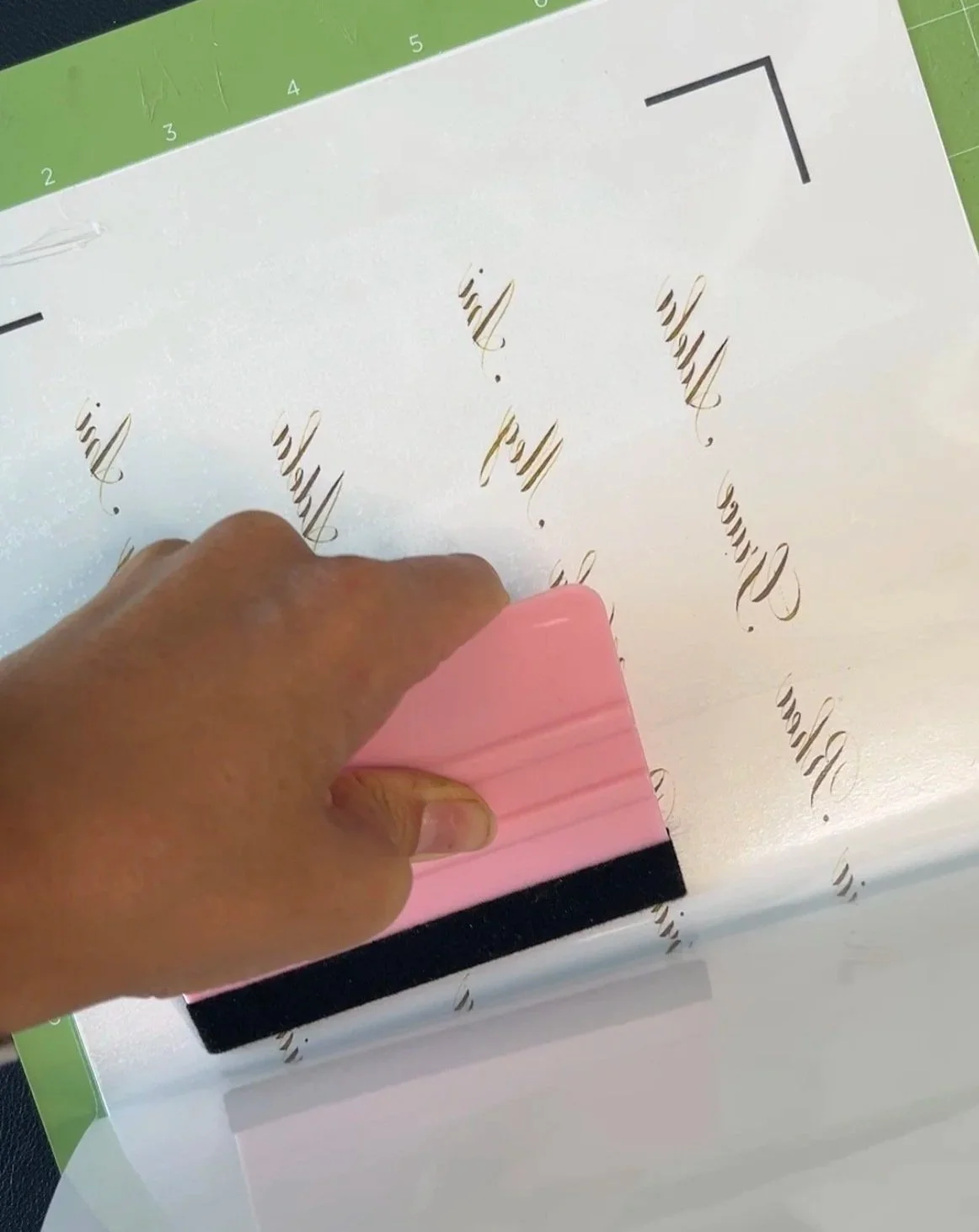
You don’t need a Cricut for this, but if you have one, you can use it to mirror the design quickly. Upload your non-reversed image, choose Print, Then Cut, and turn on the Mirror slider. I didn’t actually use the cutting feature, btw. I just liked having the adhesive mat handy for applying the clear temporary tattoo sheet and smoothing out air bubbles.
If you want an offset outline so you can cut the tattoos into a specific shape, then yes, the Cricut is useful. Otherwise, you can skip it entirely and just mirror in Preview (Mac) or Photoshop. That’s all you need. The rest of the steps stay the same.
If using le Cricut, your dialog window to print should look like this:
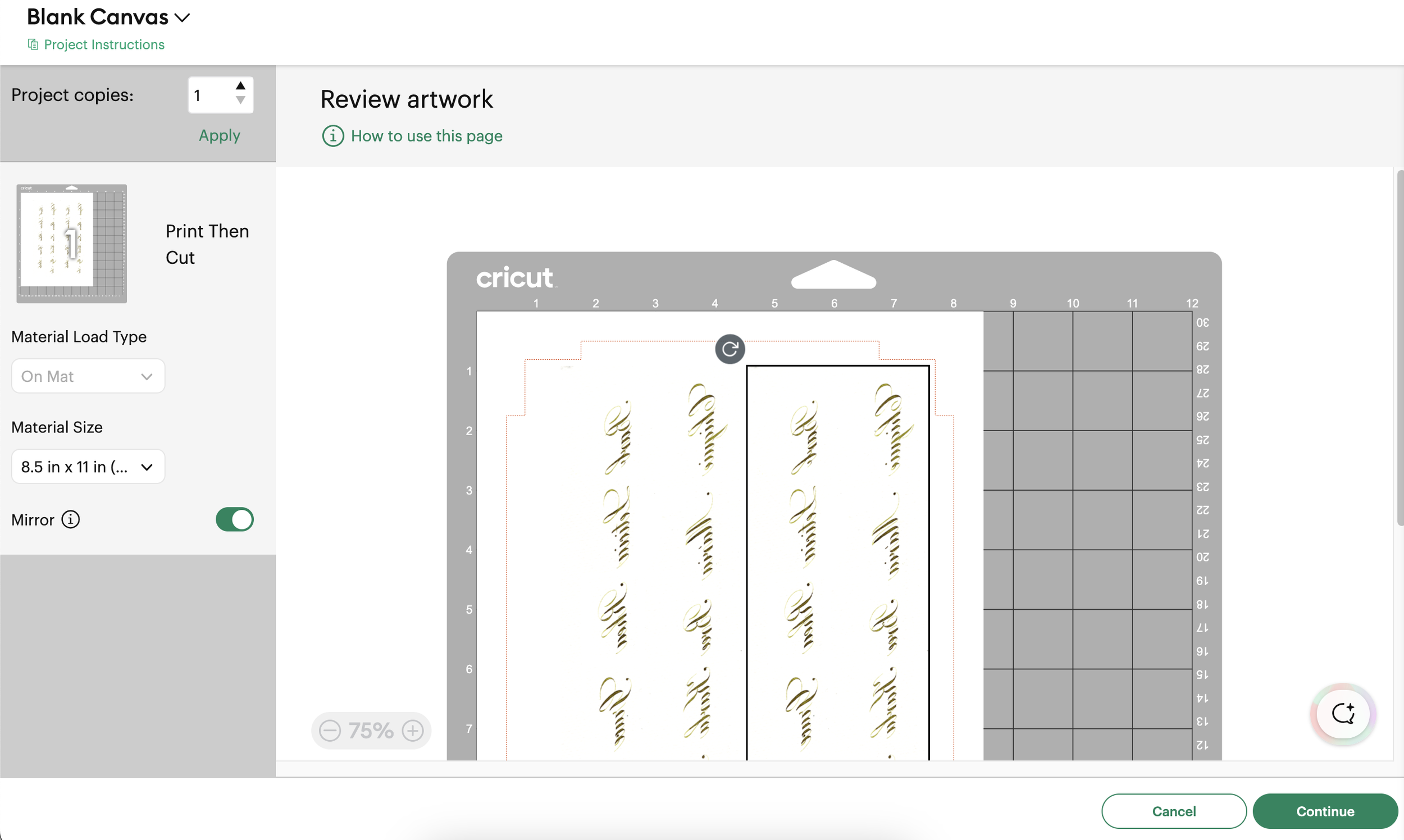
And before you hit Print, make sure that you are printing on the correct side of your temporary tattoo paper. The sheets I purchased gave instructions on which side to print the image on. This also includes placing the sheet the right way into your printer. Keep the transparent adhesive top coat that comes in the pack to the side for the next step.
Step 5: Add the Adhesive Sheet
After you’ve printed your calligraphy on the right sheet and on the right side, add the adhesive layer on top. Do this slowly and work on a smooth and clean surface to make sure that no air bubbles (or studio pup hairs, in our case) get in between your printed tattoo sheet and adhesive top sheet.
You should have a clear top sheet on top of your printed sheet now.
Step 6: Cut Your Tattoos
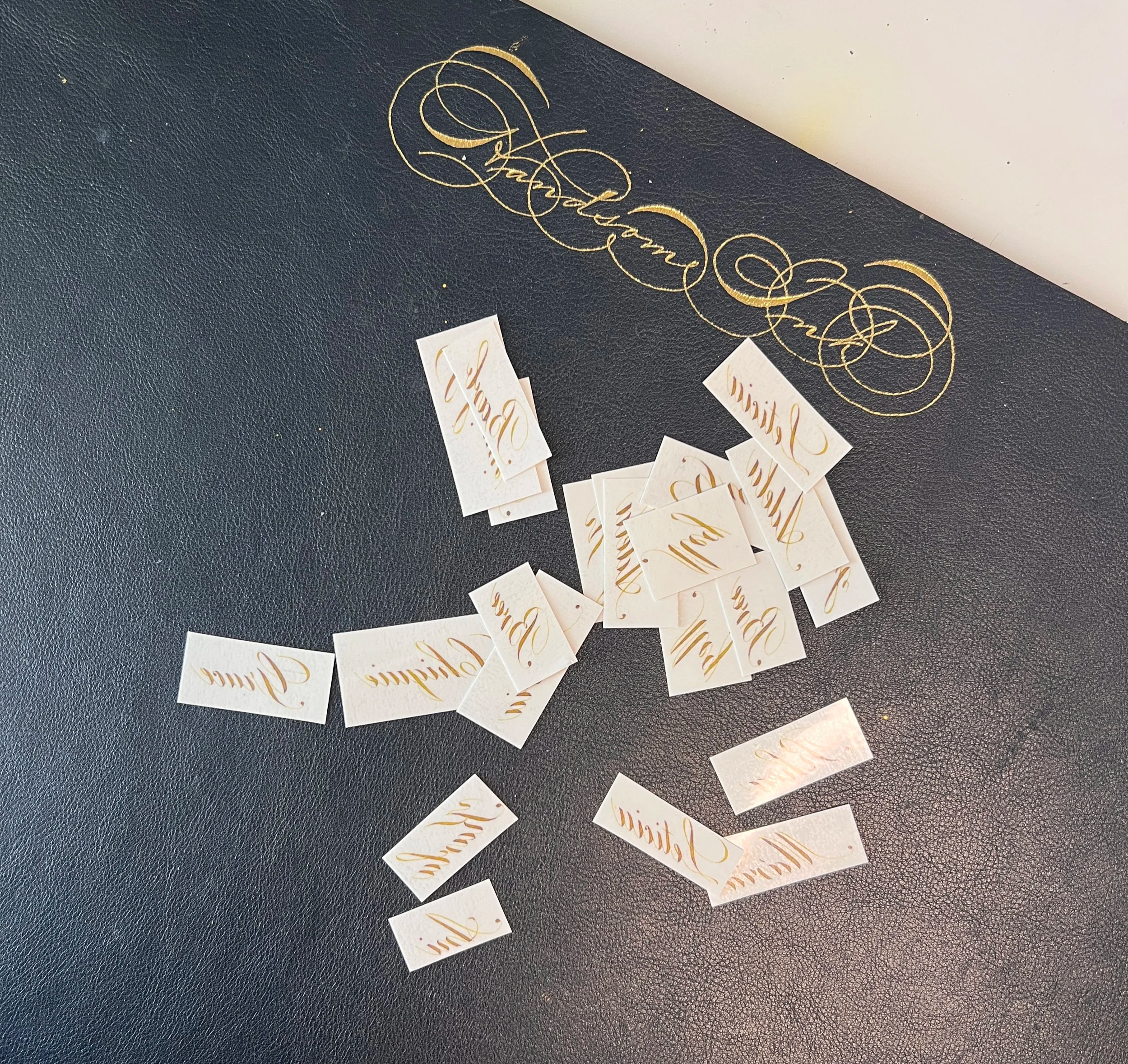
After you have your adhesive sheet on, use scissors or a paper cutter to cut each name out individually. Try to cut as close to the calligraphy as possible so there’s barely any border. It looks cleaner that way, so that there’s less adhesive transfer paper that’s blank, transferred onto your rose.
Step 7: Transfer
Once you have your names cut out individually, set up your transfer station.
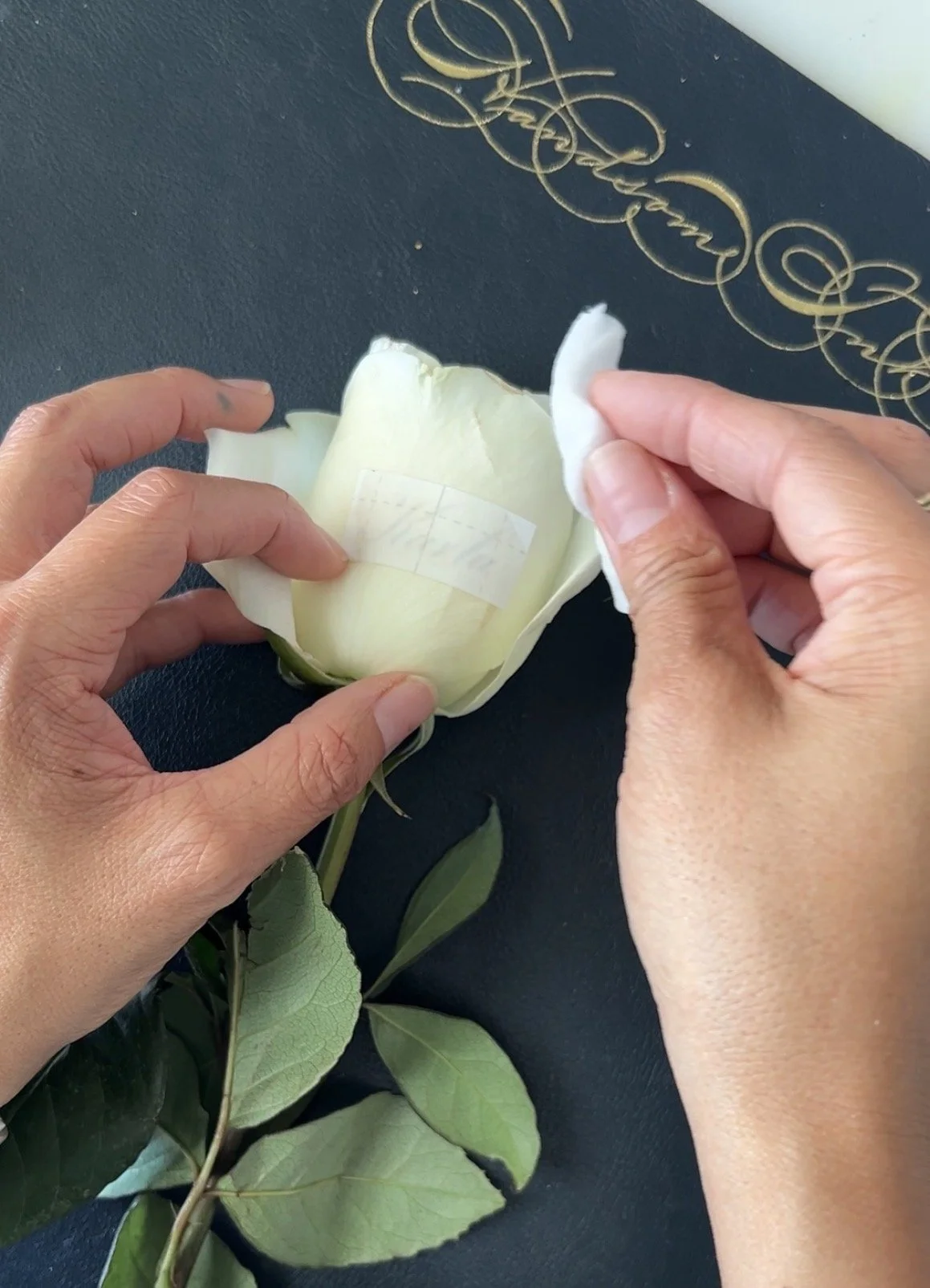
Have some cotton pads and a small bowl of water by your side.
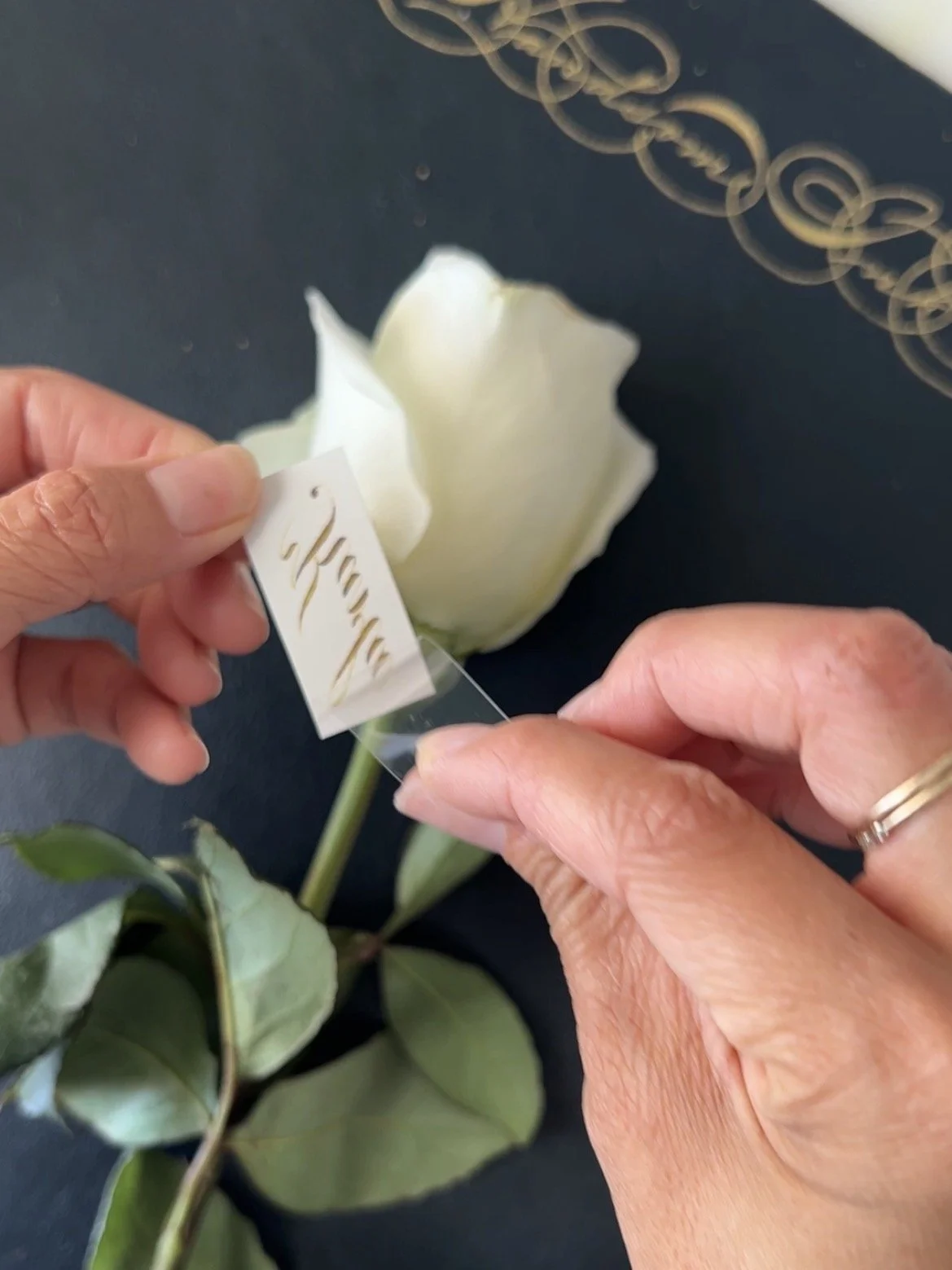
Pick one rose at a time, and choose the spot where you will transfer your tattoo
Carefully, remove the transparent top sheet of the tattoo and place it face down onto the rose
Hold it carefully (we don’t want to squish the rose, after all) and using a cotton pad with water, dab the tattoo. Your paper will have instructions on how long to dab it for (mine said ~30 seconds).
Carefully remove the paper and voilà! Your calligraphy should be transferred!!
Repeat slowly with each name and rose.
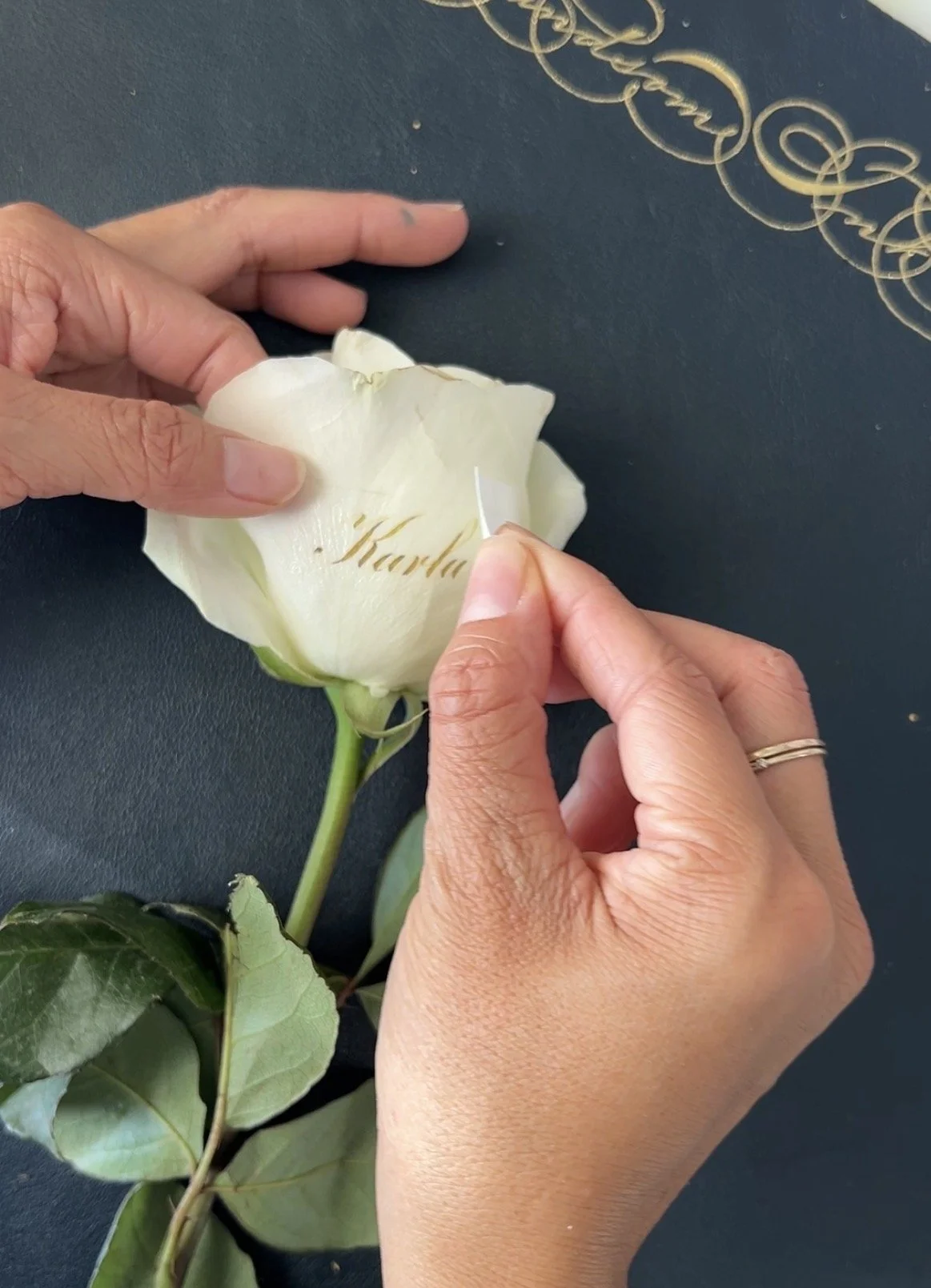
To watch the process, view it in our Reel below.
And that’s about it! I tested my calligraphy in green ink, but I’d be curious to see how this result looks with different colored inks or scripts, so if you happen to try it out, let me know!


We truly hope that this is a helpful resource and that you can create something beautiful and special with a few extra materials.
Yours truly,
Handsome Ink